User Profile
How to change your personal information on your Data for Good account.
How to change your profile photo
If you would like to add or change the profile photo of your account go to dataforgood.com/login to sign in.
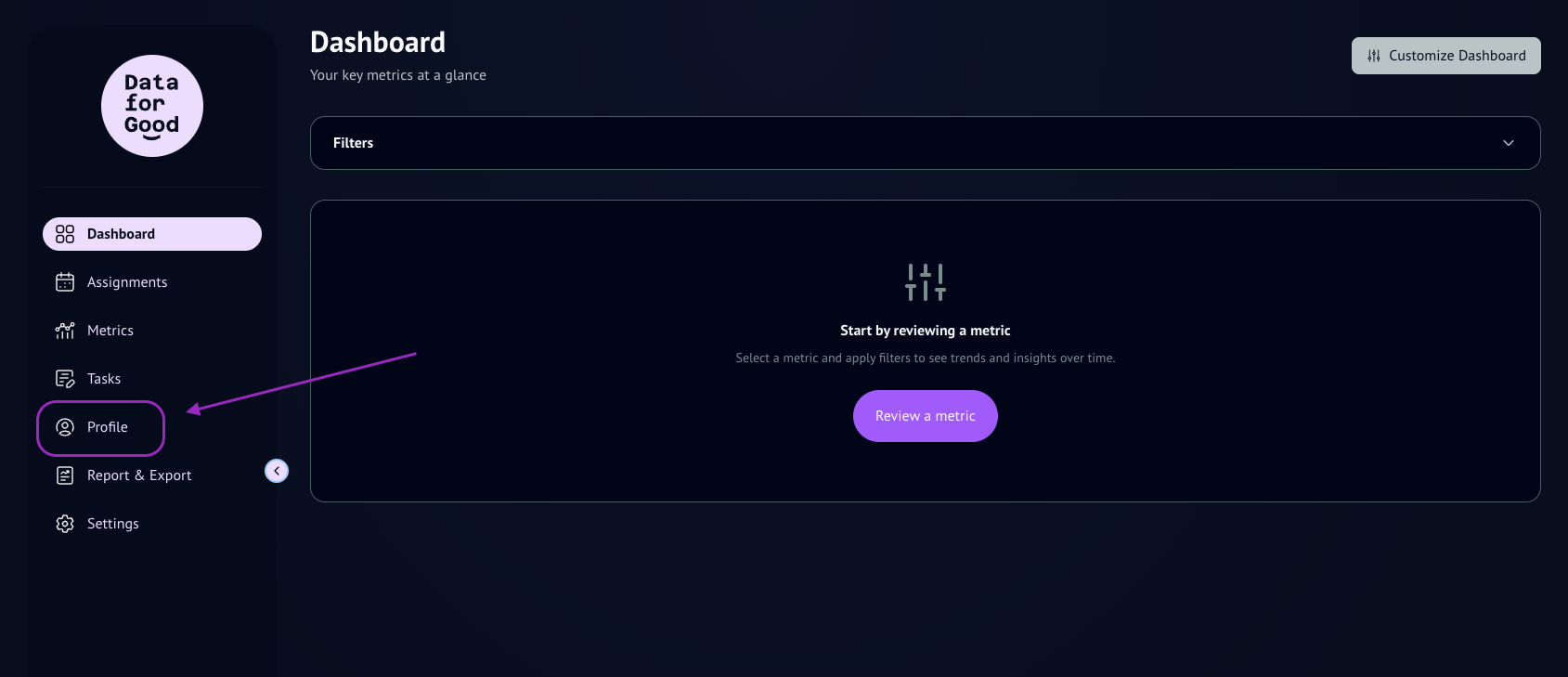
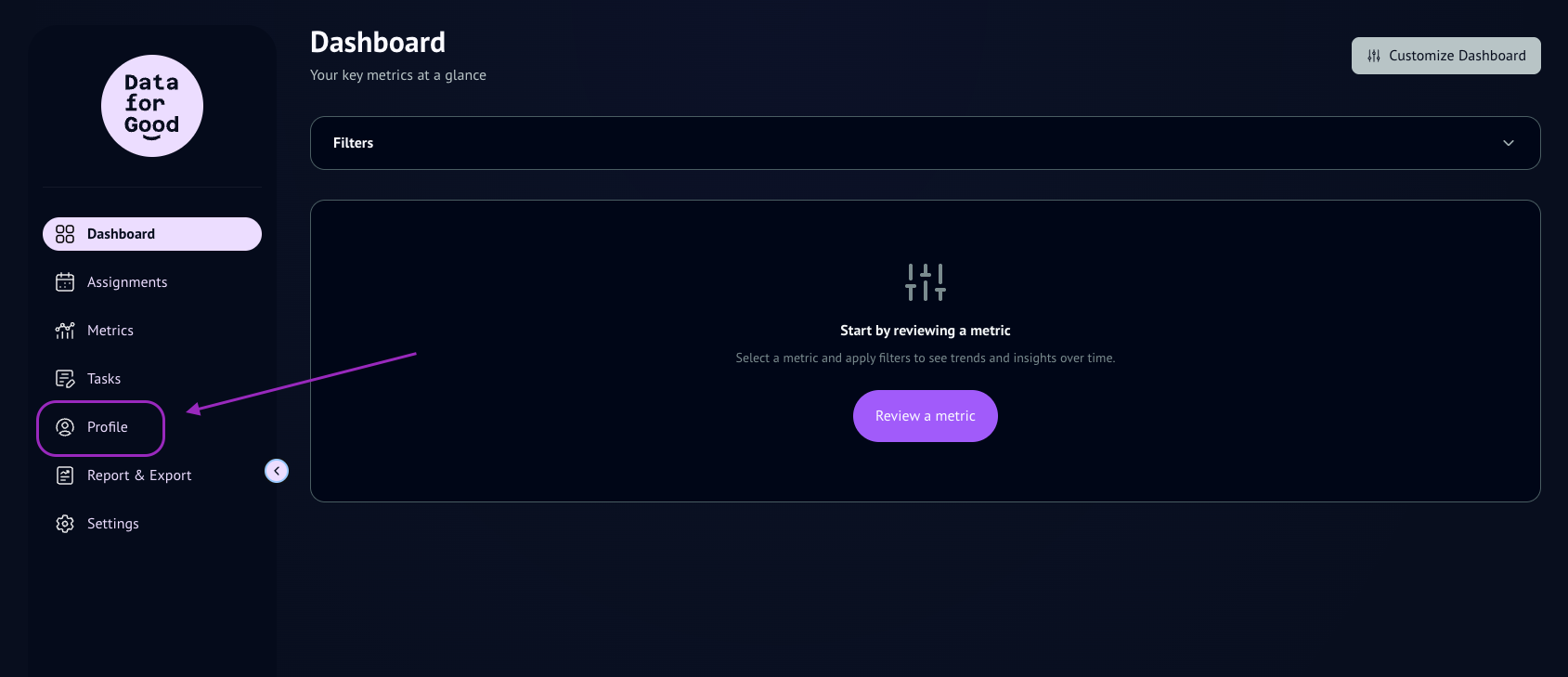
Once inside the app, navigate to the left panel under the Data for Good logo.
Click Profile.
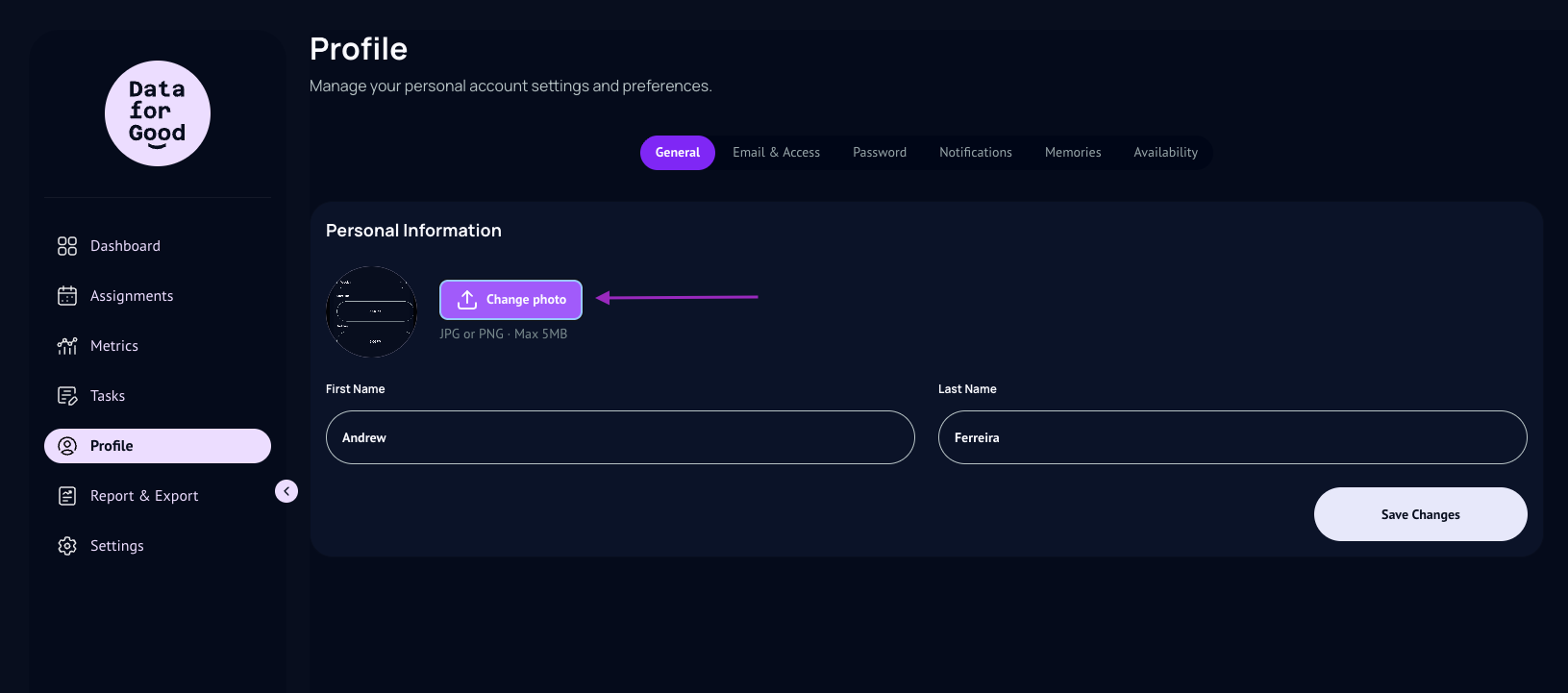
On Profile, you can manage all aspects of your personal account (profile photo, name, password, email, notifications and more).
Click on General.
And click Change Photo.
You can upload JPG or PNG files, with 5MB max.
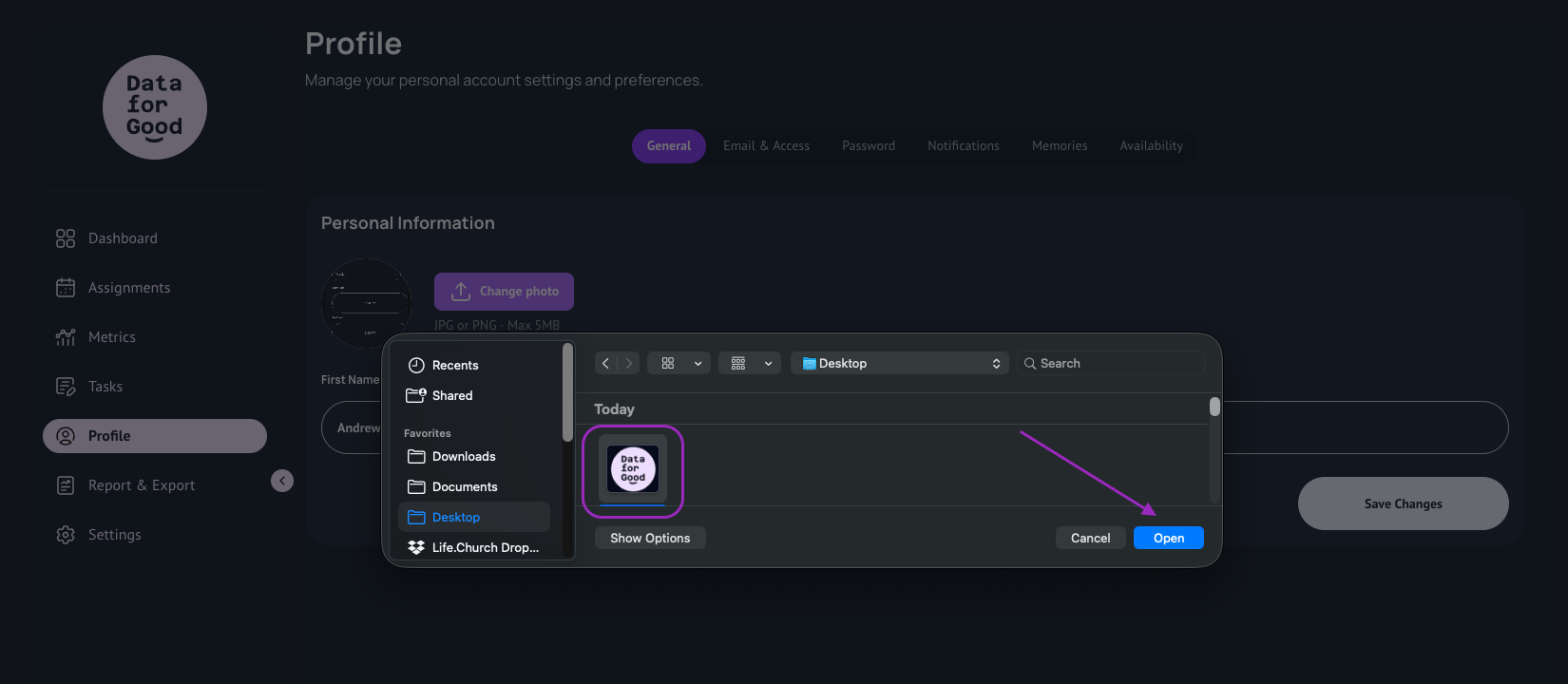
A popup will appear for you to choose the file you want to upload on your account.
Select the file
And click Open
Wait for the photo to appear inside the circled avatar
Click Save Changes
How to change your account email
You can also change the email you first chose to set up your account.
Once inside the app, navigate to the left panel under the Data for Good logo.
Click Profile.
On Profile, you can manage all aspects of your personal account (profile photo, name, password, email, notifications and more).
Click on General.
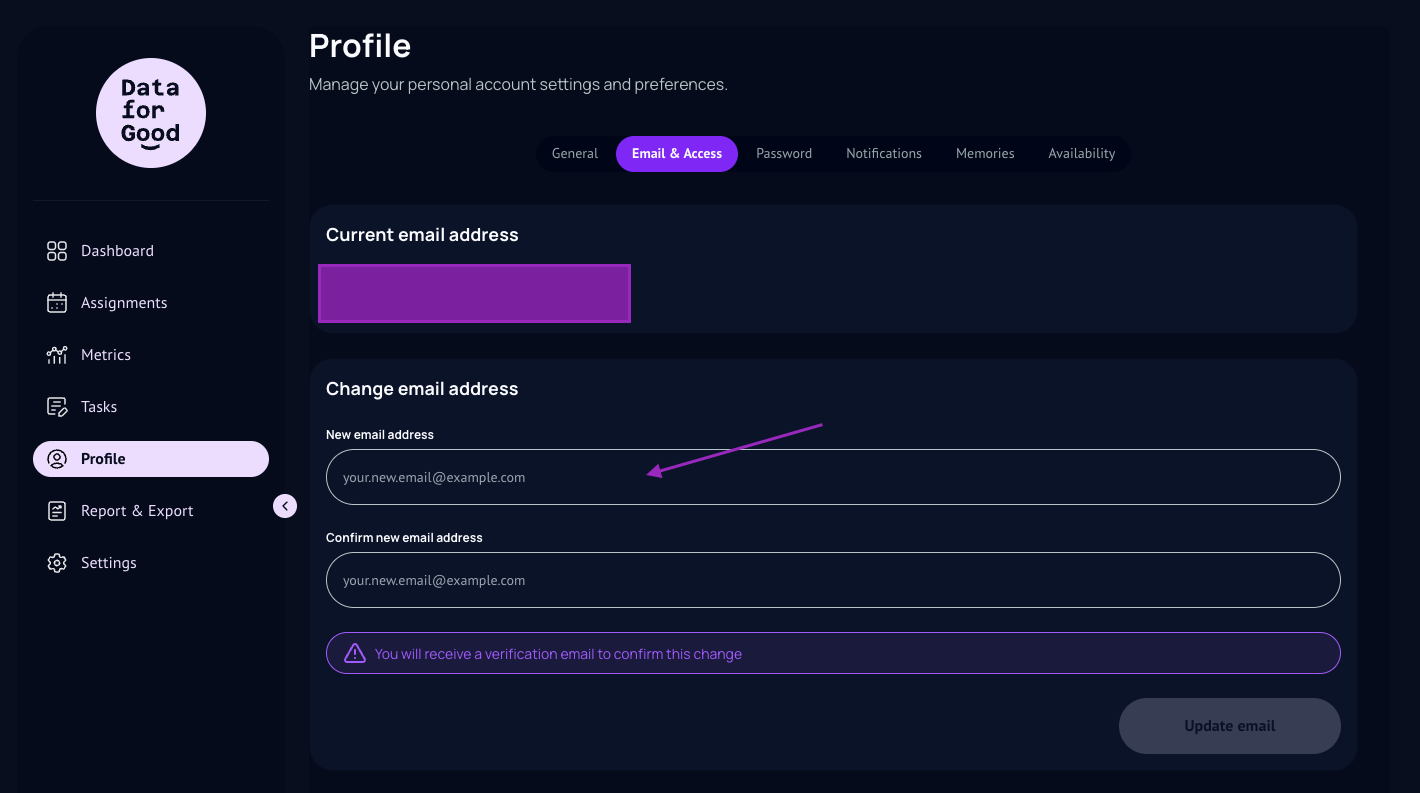
And click Email & Access.
Type the new email in both line (new and confirm) and click Update Email.
How to change your notifications settings
You can change the settings of what type of notification you would like to receive from Data for Good.
Once inside the app, navigate to the left panel under the Data for Good logo.
Click Profile.
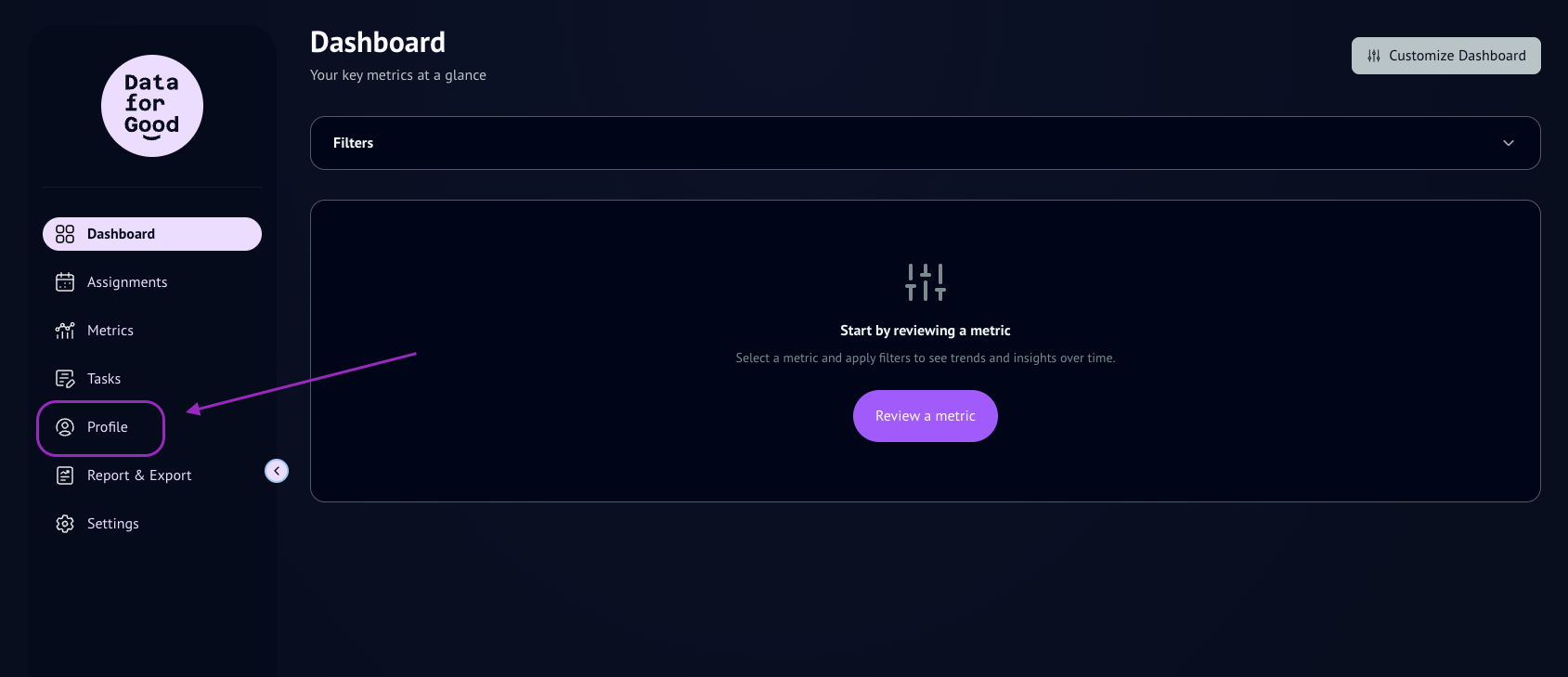
On Profile, you can manage all aspects of your personal account (profile photo, name, password, email, notifications and more).
Click on General.
And click Notifications.
If the toggles are grey out it means that you don’t have any notifications set up for your account.
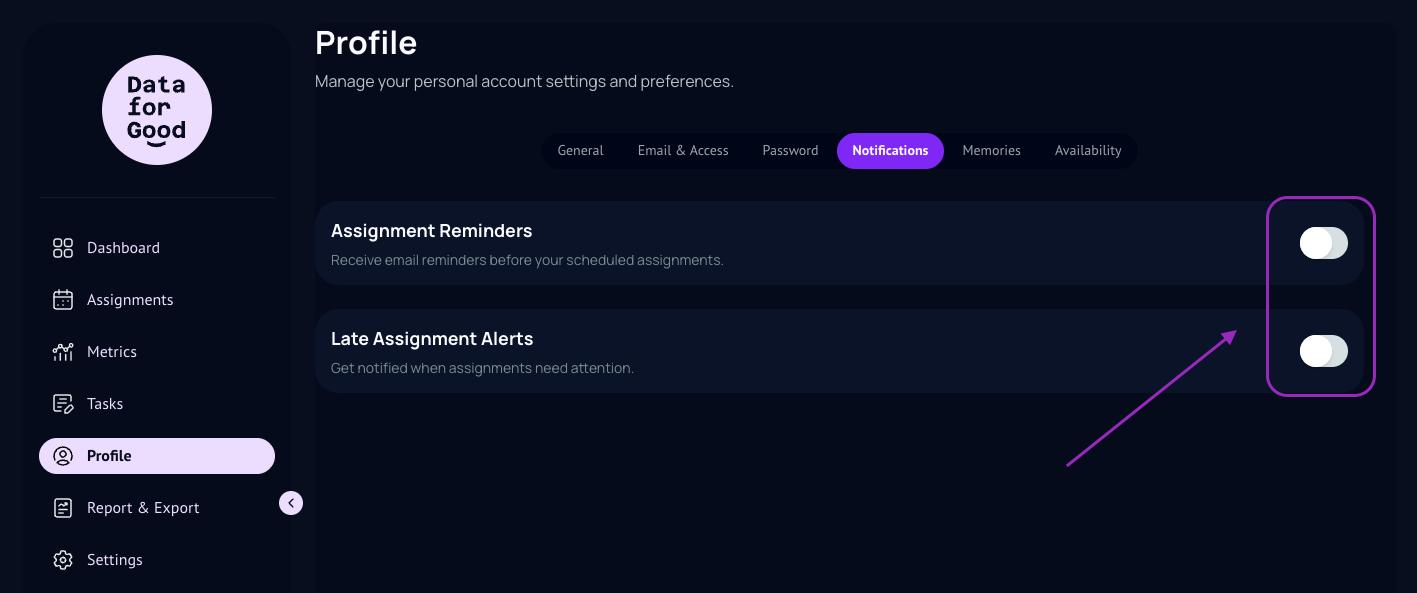
To set up your notifications:
You can assign reminders and/or have alert for late assignments that need your attention.
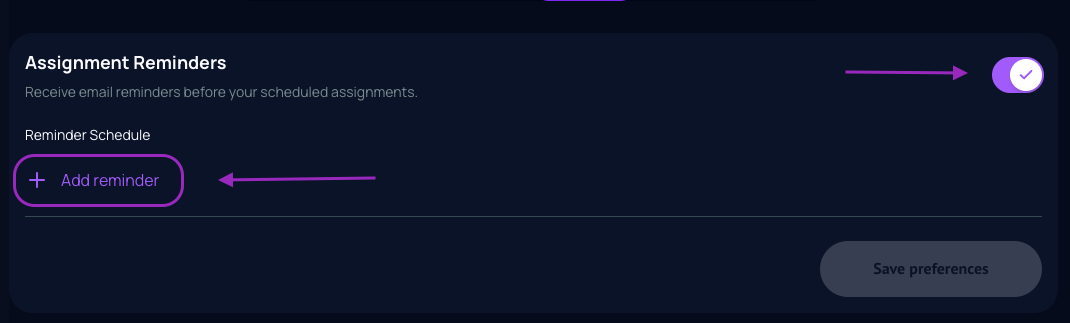
Assignment Reminders
Turn on the toggle
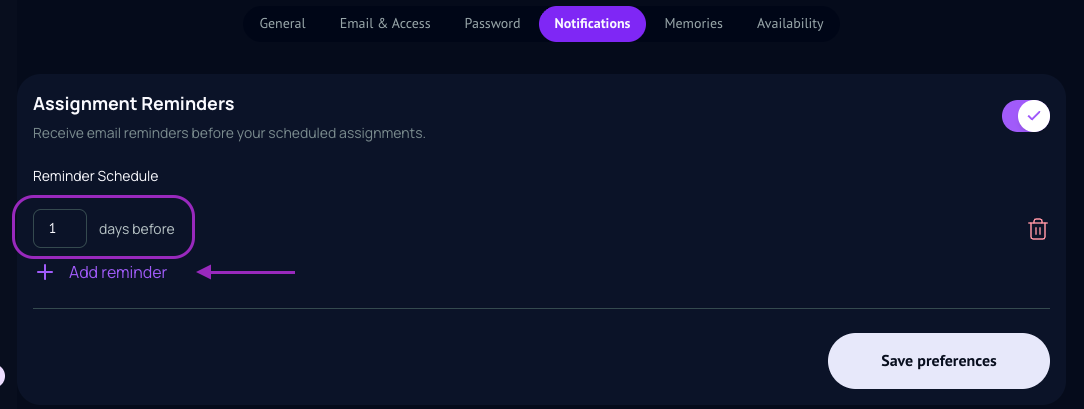
Click Add Reminder
You can assign one unique reminder, or multiple depending on how many and how early you would like to be reminded.
Once you have all your reminders set, click Save Preferences.
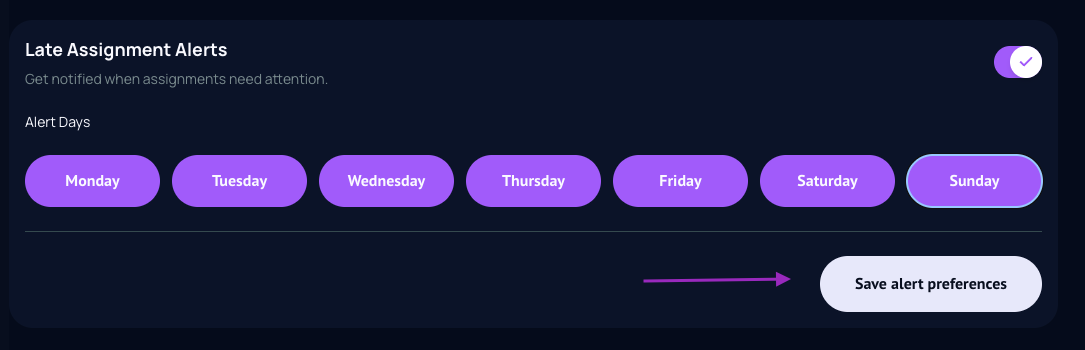
Late Assignment Alerts
Turn on the toggle
Select what days of the weeks you would like to receive the alerts.
You can assign one unique day, or multiple days of the week.
Once you have all your reminders set, click Save Preferences.